Murasu Anjal 12 is a major new version of Murasu Anjal, a Tamil input method with a history of more than forty years. This release brings the input experience in line with modern expectations: as you type, Murasu Anjal can offer on-screen suggestions, correct likely mistakes, and predict the next word you are about to write. Version 12 also delivers a major overhaul of every existing font in the bundle and introduces several new typefaces, giving you far more control and polish over how your Tamil text looks on the page.
This guide describes those features in detail so that you can get the most out of the new version — both the way you enter text and the way you present it. Wherever a feature works differently on Windows and macOS, the difference is called out; where the two platforms behave the same, a single description covers both.
What’s new in Murasu Anjal 12 — feature overview
Suggestions / candidate window — a window that appears beneath the word you are typing and offers matching words to choose from.
Auto-correction — when what you type is not a recognised word, the closest correct word is offered as a suggestion.
Next-word prediction — once you have typed a familiar phrase, Murasu Anjal can predict the following word, including a one-keystroke and backslash-driven mode that can compose entire lines (proverbs, Thirukkural, and set phrases).
Word learning — Murasu Anjal remembers the words you type and prioritises them in future suggestions; learnt words can be shown in a distinct colour.
Emoji in suggestions — relevant emoji can appear among the candidates as you type.
Annotations — short meanings (or transliterations) shown beneath ambiguous suggestions to help you pick the right word.
9 keyboard layouts — including the modern Anjal and Tamil99 layouts plus seven legacy layouts for long-time users.
Tamil and Tamili (Tamil Brahmi) target scripts — type in modern Tamil and get it in the ancient Tamili script.
Light, Dark, and System appearance for the candidate window.
Cross-platform and standards-compliant — built as a Text Service input method on both Windows and macOS, so it switches and behaves like any other system input method, with an additional Murasu Anjal shortcut (Ctrl-`) for long-time users.
Bundled productivity tools — Wordlist Editor, Dictionary Manager, Character Palette, and the Solvan Text Reader.
Redesigned and new fonts — every legacy font updated, new fonts added to the Premium bundle, and multiple weights for body-text fonts in the paid versions.
Adjustable candidate window size (Regular, Medium, Large) — useful when demonstrating typing to a class over a projector.
2. Installation and Activation
Murasu Anjal must be installed and activated on your desktop computer before you can use it. Installation and initial setup differ between Windows and macOS, but activation and everyday use are very similar — and in many places identical — on the two platforms.
Corporate and institutional users: If your educational or government institution holds a corporate license with a managed (“push-down”) installation, Murasu Anjal is installed and activated for you automatically. In that case you can skip this section and go straight to Input Method Settings.
2.1 Download the installer
Download the installer for your computer from the Anjal.Net download page:
Be sure to download the correct installer for your operating system — Windows or macOS. There is a single installer that serves both the free and paid versions; what you receive is determined by your license. If you only need the free version, follow the steps in this short video:
The rest of this guide applies to the free version as well as the paid versions, except where a feature is specifically noted as paid-only.
2.2 Run the installer
Once the download is complete, run the installer on your computer and follow the prompts. This completes the installation. The next step is activation.
2.3 Activate Murasu Anjal
Activation is done in Murasu Anjal Manager. On Windows you’ll find it in your Programs; on macOS it’s in Applications. Murasu Anjal Manager looks and works the same on both platforms.
To activate you need a valid license key, along with the name and email address the key is assigned to. The steps are:
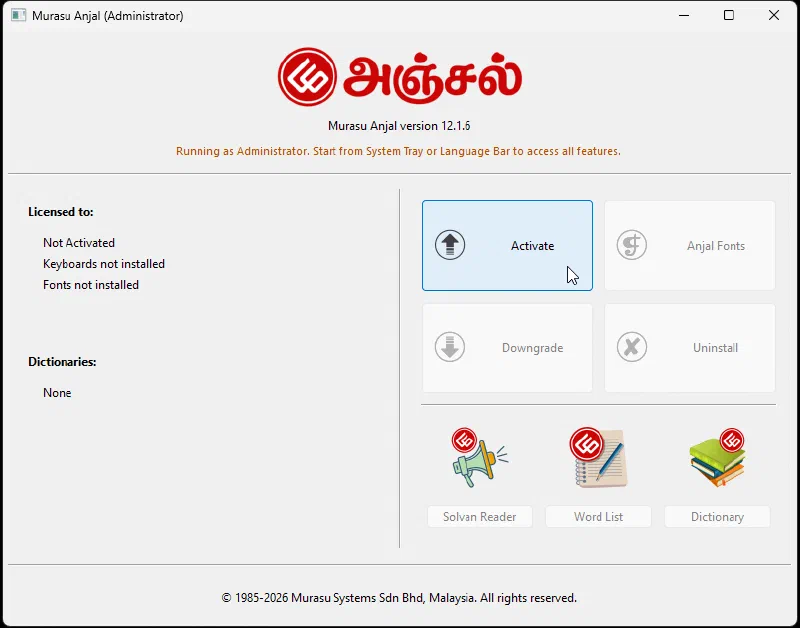
a. Open Murasu Anjal Manager and click Activate.
Murasu Anjal Manager — Activate
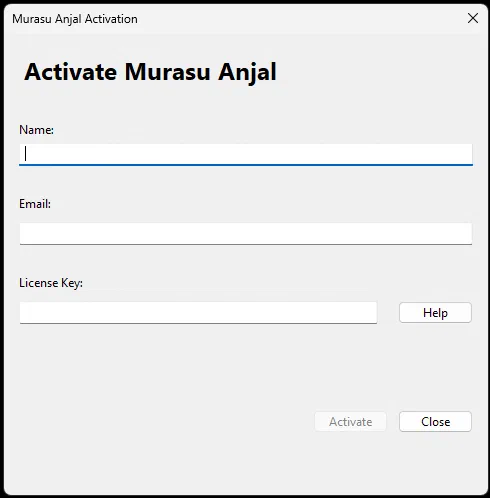
b. The activation form appears. Fill in your name, email address, and license key.
Activation form
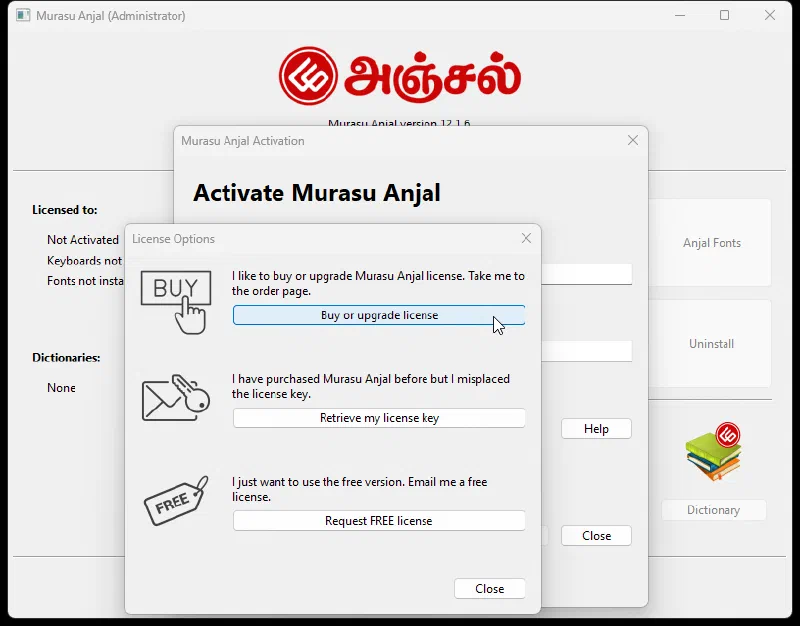
If you have forgotten or lost your key, click the Help button to retrieve it or to request a free license. (The free license has some limitations — these are explained in the video linked above.) If you need to buy a new key, use the links as shown in this screenshot to open the order page in your browser.
Help — retrieve key or buy a license
c. Enter your valid license details and click Activate. Murasu Anjal is now activated on your system.
d. Finish setup for your platform:
Windows: Restart your computer, and you’re ready to start using Murasu Anjal.
macOS: A few extra steps are needed to add Murasu Anjal as an input source. Open System Settings → Keyboard → Input Sources → Edit. Click the + button at the bottom-left of the window, select Tamil, and add Murasu Anjal from the list on the right. Then restart your Mac and start using Murasu Anjal.
3. Input Method Settings
The Input Method Settings control how Murasu Anjal behaves as you type — your keyboard layout, whether suggestions appear, how they look, and more.
Opening the settings:
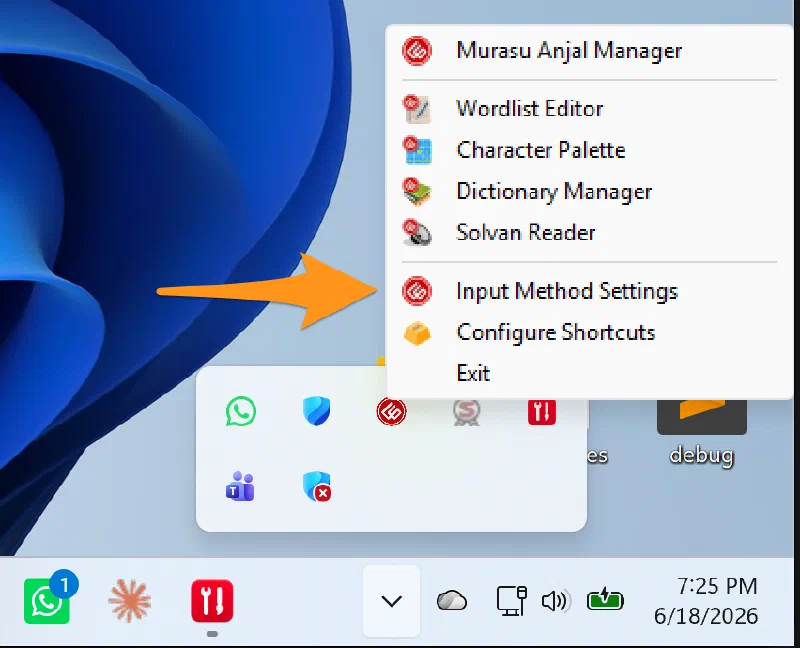
Windows: Click the Murasu Anjal icon in the system tray (bottom-right of the screen) and choose Input Method Settings.
Opening Input Method Settings on Windows
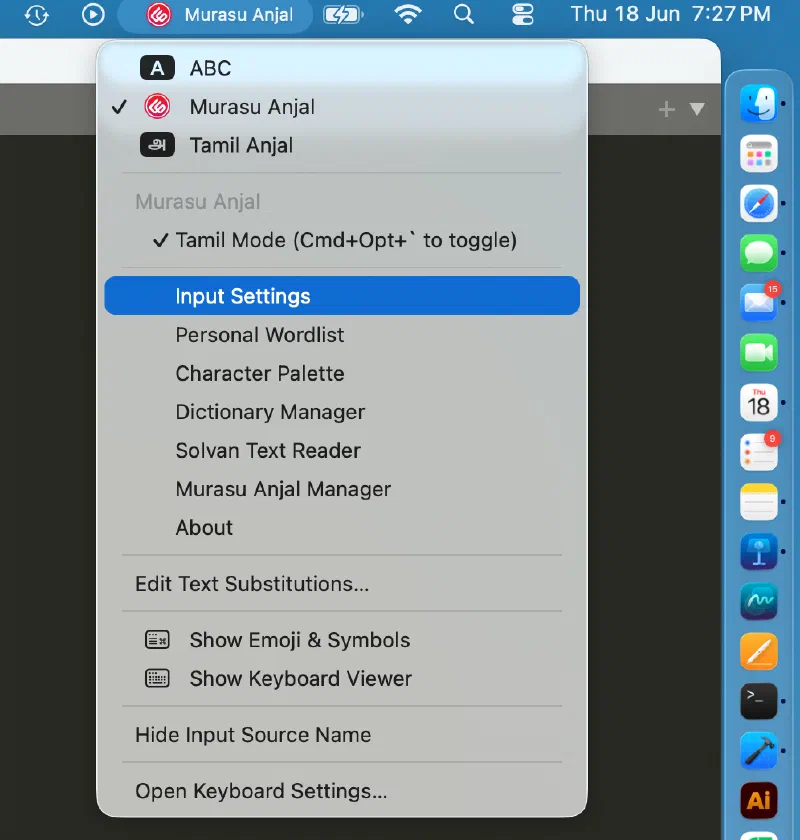
macOS: Click the Murasu Anjal icon in the menu bar (the strip across the top of the screen that holds icons, the date, and the time) and choose Input Method Settings.
Opening Input Method Settings on macOS
The settings are essentially the same on both platforms. The Windows version is shown and explained below; the same applies to macOS unless noted.
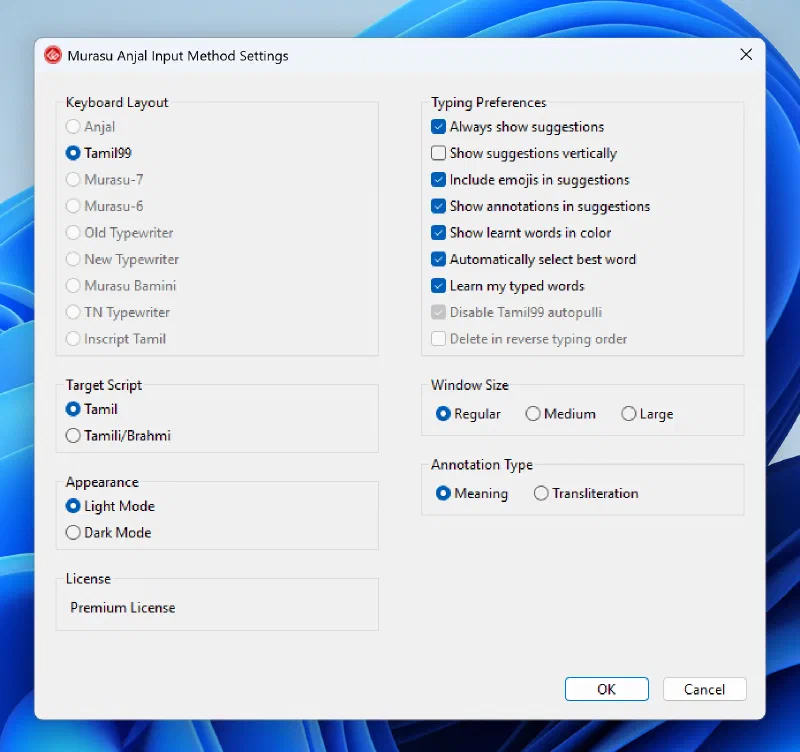
Input Method Settings (Windows)
3.1 General settings
Keyboard Layout — The default is Anjal in the public version, or Tamil99 in the MOE Singapore version. In the public version you can change this to any of the 9 supported layouts shown in the settings window. (For help choosing a layout, see section 4.1, Keyboard Layouts.)
Target Script — The script your typing produces. This is Tamil by default and you won’t normally change it, unless you want to practise typing in the ancient Tamili (Tamil Brahmi) script.
Appearance — The look of the candidate window: Light, Dark, or System. (System follows your operating system’s light/dark setting; this is detected on macOS only.)
License — Your license type (Windows only).
3.2 Typing Preferences
Always show suggestions — When selected, Murasu Anjal continuously shows suggestions as you type, in a window called the candidate window.
Show suggestions vertically — Off by default. Turn this on to have candidates stacked vertically instead of laid out horizontally (the default).
Include emoji in suggestions — When suggestions are on, relevant emoji can be offered among the candidates. For example, typing மகிழ்ச்சி can offer 😃 as one of the candidates; other words offer their own related emoji.
Show annotations in suggestions — Shows a short note beneath suggestions that might be confused with one another (such as மலை and மழை). The annotation is usually a one-word meaning, when one is available. You can switch annotations to show transliteration instead, using the Annotation type setting at the bottom of the right-hand column.
Show learnt words in colour — On by default. Murasu Anjal remembers words it learns from you, even if they already exist in the bundled wordlist; with this option on, those learnt words are shown in a different colour.
Automatically select best words — On by default. When the candidate window highlights a best-matching word (shown with a different background colour), pressing space inserts that word in place of what you were typing. This is called committing the best word.
Learn my typed words — Murasu Anjal learns the words you type and gives them priority in future suggestions.
Disable Tamil99 auto-pulli — Turns off the Tamil99 automatic pulli behaviour. With it off, typing கக will not automatically add a pulli to the first க.
Delete in reverse typing order — Applies to the typewriter and Bamini keyboards. With this on, deleting removes the vowel sign before the consonant.
3.3 Window Size
This sets the size of the candidate window. Regular is the default; choose Medium or Large to make it bigger. A larger window is especially useful when you are demonstrating typing to a class over a projector.
Part II
4. Typing in Tamil with suggestion candidates
4.1 Keyboard Layouts
Murasu Anjal 12 supports nine keyboard layouts, all listed in the Input Method Settings window. If you are completely new to typing in Tamil, we recommend one of these two:
Tamil99 — choose this if (i) you work entirely in Tamil, or (ii) you are a teacher or student in Singapore, where the Ministry of Education has established Tamil99 as the standard for Tamil text input.
Anjal — choose this if you work mostly in English, Malay, or another Latin-based language and type in Tamil only occasionally. Teachers and students in Malaysia mostly use Anjal.
The remaining layouts are included to support users who have typed on them for a long time and would find it difficult to switch to the newer layouts. The nine available layouts are: Anjal, Tamil99, Murasu-7, Murasu-6, Old Typewriter, New Typewriter, Murasu Bamini, TN Typewriter, and Inscript Tamil.
4.2 Switching between Tamil and English
Murasu Anjal is built as a standards-compliant Text Service input method on both Windows and macOS, so you switch to and from it the same way you switch any other system input method.
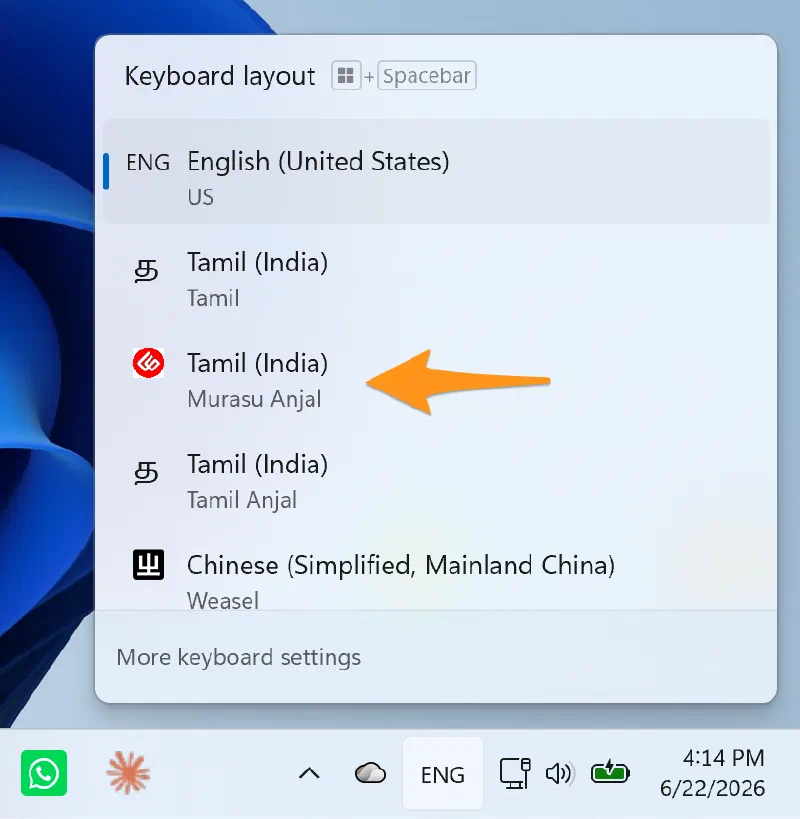
Windows: Click the language/input selector at the bottom-right of the taskbar and choose Murasu Anjal.
Selecting the input method on Windows
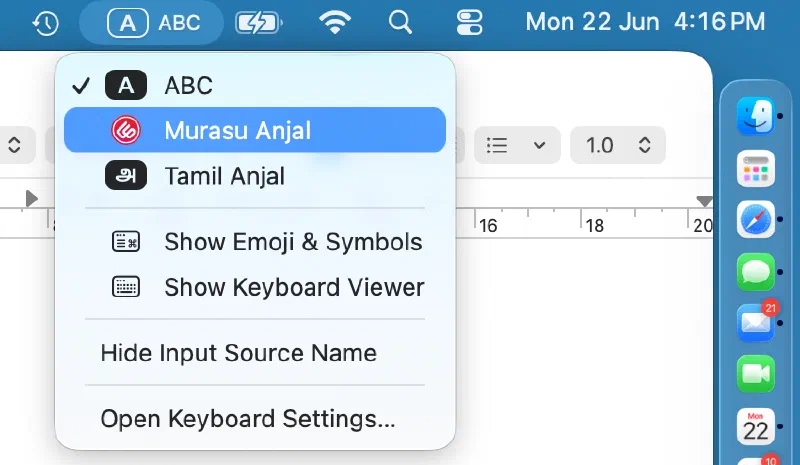
macOS: Click the input menu at the top-right of the menu bar and choose Murasu Anjal.
Selecting the input method on macOS
You can also switch with the keyboard:
Windows: Press Windows + Space to cycle through your installed input methods. (Depending on your setup, Left Alt + Shift may also switch the input language.)
macOS: On modern Mac keyboards, press the Globe key (bottom-left of the keyboard) to switch languages.
In addition, on Windows, Murasu Anjal provides its own toggle — Ctrl-` (Control + backtick) — added to support long-time users who have relied on this combination for decades. (This Murasu Anjal toggle is a Windows feature; on macOS, use the Globe key or the input menu described above.)
4.3 Suggestions and the candidate window
One of the biggest additions in Murasu Anjal 12 is on-screen suggestions, shown in the candidate window. Reactions have been mixed: many users love how it speeds up their typing, prevents typos, remembers their frequently used words, and even offers the next word — while some seasoned users find the suggestions get in their way.
So, first, a note for seasoned users: if you would prefer Murasu Anjal to behave exactly as it did before, you can turn suggestions off entirely. Simply disable suggestions in the Input Method Settings (see section 3.2, “Always show suggestions”). The rest of this section covers the candidate window for everyone who keeps it on.
4.3.1 The candidate window
The candidate window appears just below the word you are typing and shows suggested words as you go. The suggestions are ordered using a few factors:
Frequency — how often the word appears in your own typing.
Auto-correction — when what you are typing is not a recognised word, the closest matching correct word is offered.
Next-word prediction — the word most likely to come next, based on phrases Murasu Anjal already knows (see section 4.3.3).
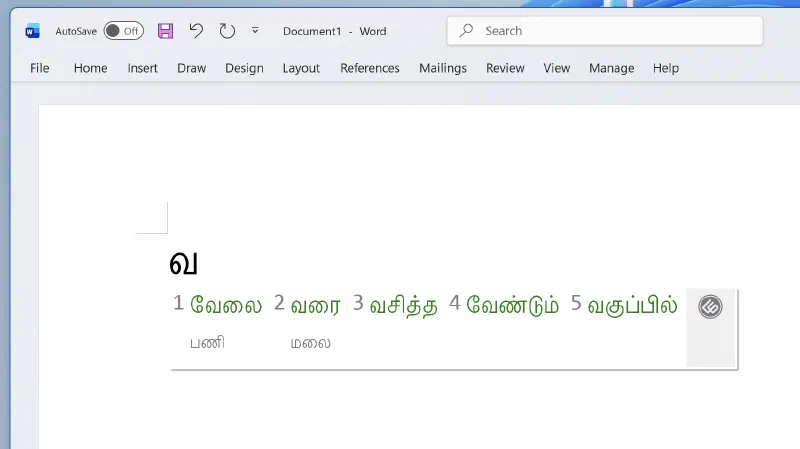
The candidate window in Microsoft Word on Windows 11
The candidate window shows up to five suggestions at a time; if there are more, you can move through the pages (see “Navigating candidates” below).
4.3.1.1 How to select a candidate
There are a few ways to choose a candidate:
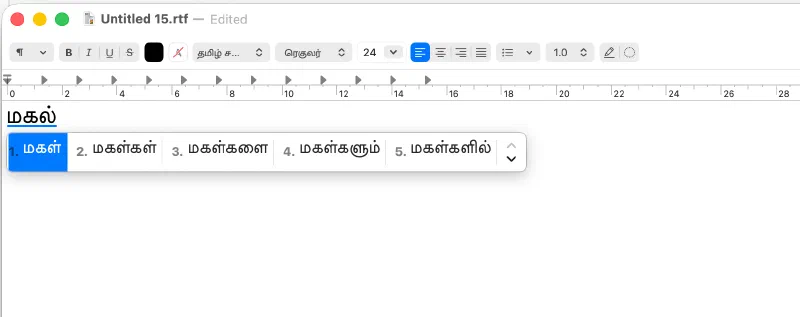
Best word (highlighted). If the first candidate is highlighted (shown with a different background colour), Murasu Anjal has decided that word is the best fit for what you are typing. While such a highlighted word is showing, pressing space or Enter/Returncommits it — that is, it replaces what you are currently typing with the chosen word. The best word is highlighted only when Automatically select best words is turned on in the Input Method Settings (section 3.2); with that option off, you select candidates manually.
By number. Type the number shown next to a candidate to commit it — 1 for the first, 2 for the second, and so on.
Navigating candidates. You can also move through the candidate window with the arrow keys, and page through longer lists with Page Up and Page Down, then press Enter/Return to commit the highlighted candidate.
Candidate window with the highlighted best word and numbered candidates
4.3.2 Temporarily bypassing a suggestion
Sometimes the suggested best word is not the word you want, or it carries the wrong suffix (the grammatical ending, or விகுதி). This is common when you are new to Murasu Anjal and it hasn’t learnt your preferred words yet — and pressing space could commit the wrong word. There are three ways to bypass the suggested best word:
Shift + Space. Commits the word exactly as you composed it, ignoring the suggestion. (If word-learning is on, your typed words are remembered for next time — see “Learn my typed words” in section 3.2.)
Esc. Hides the candidate window and stays out of your way until you finish the current word. After you press space or Enter/Return, the candidate window resumes for the next word.
Backslash ( \ ). Hides the candidate window momentarily; it reappears after you type the next letter.
If word-learning is on, the word you commit with Shift + Space is remembered for next time — so when you next begin typing a word that starts the same way, your committed word will appear as a suggestion. This is controlled by the Learn my typed words preference (section 3.2).
4.3.3 Next-word prediction
Candidate selection also takes into account the words you have already typed in the current sentence. When the sequence is one Murasu Anjal recognises, it can predict the next word the moment you type its first letter. For example, suppose you frequently type உங்கள் அன்புக்கு நன்றி. After typing உங்கள் and a space, typing just அ is very likely to bring up அன்புக்கு; and after the first two words, typing ந is even more likely to bring up நன்றி.
★ Highlight — one-keystroke next-word prediction. You don’t even need to remember the next word. After committing a word and pressing space, press backslash ( \ ) on its own and Murasu Anjal offers the most likely next word. Keep going — word + space + \ + space + \ … — and it composes the whole line for you.
This works beautifully for all 1,330 Thirukkural, hundreds of proverbs (பழமொழிகள்), and idioms (மரபுத்தொடர்). Try typing யாதானும், then space \ space \ space \ space \ space \ — and you can compose the entire kural, with no typos and no spelling errors.
4.3.4 Looking up and forgetting words from the candidate window
While the candidate window is showing, Murasu Anjal offers shortcuts that connect it to your dictionary and your learnt-word memory. These are aimed at power users.
Look up a word in the dictionary. Select a candidate and look it up directly in the bundled dictionary, without leaving your document. This opens the word in the Dictionary Manager (see section 6).
Windows:Ctrl + Shift + Enter.
macOS:Option + the candidate’s number, or Option + Enter for the highlighted candidate.
Forget a learnt word (macOS only). If Murasu Anjal has learnt a word you’d rather it didn’t suggest, select that candidate and press Option + Delete to remove it from your private wordlist. This shortcut is currently available on macOS only.
Part III — The bundled tools
Murasu Anjal 12 comes with a set of companion applications that help you manage your words, look up meanings, insert special characters, have Tamil text read aloud, and bring older Tamil documents up to date. You can start any of them from your Programs (Windows) or Applications (macOS) folder, or directly from Murasu Anjal itself:
Windows: click the Murasu Anjal system-tray icon.
macOS: click the Murasu Anjal icon in the menu bar to open the input method menu, which lists Input Settings, Personal Wordlist (the Wordlist Editor), Character Palette, Dictionary Manager, Solvan Text Reader, File Converter, and Murasu Anjal Manager.
5. Wordlist Editor
The Wordlist Editor manages the words behind your suggestions — both the wordlists bundled with Murasu Anjal and the private wordlist stored on your own computer. Your private wordlist is the memory behind the candidate window: it holds the words Murasu Anjal has learnt from you (see “Learn my typed words” in section 3.2) and anything you add by hand. It is never shared anywhere; it stays on your machine, and you can export it to back it up or move it to another computer.
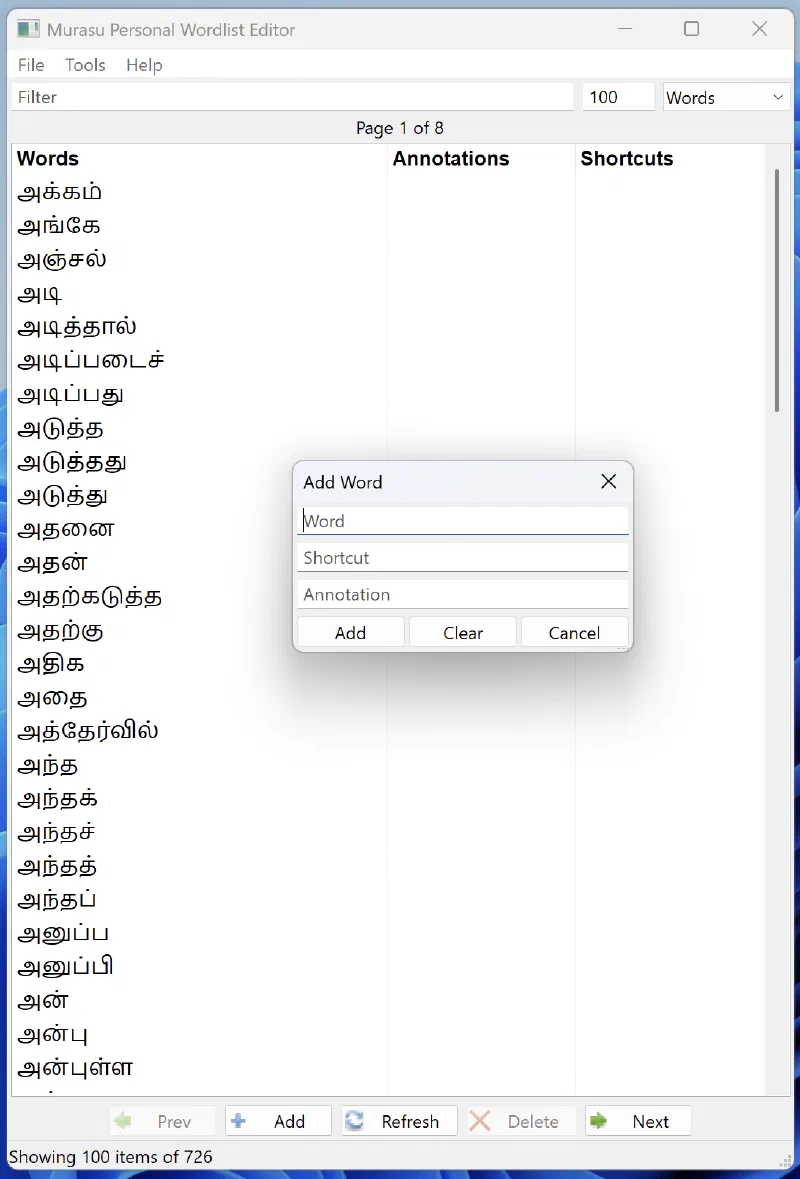
The Wordlist Editor, with the Add / Edit Word dialog showing the Word, Shortcut, and Annotation fields
5.1 The four kinds of entries
A selector at the top of the window lets you switch between the kinds of data you can manage:
Words — the words offered as suggestions. Each entry can also carry two optional extras:
a Shortcut — a short abbreviation that expands to the full word as you type, and
an Annotation — a brief meaning shown beneath the word when a suggestion is ambiguous (this is what the “Show annotations in suggestions” option in section 3.2 displays).
Annotations — the meanings (or transliterations) attached to words, managed on their own.
Emojis — the emoji associated with words, which drive the “Include emoji in suggestions” option (section 3.2).
Blacklist — words you never want suggested. Adding a word here is the permanent counterpart to the “forget a learnt word” shortcut in section 4.3.4.
To add or change an entry, use Add, Update, or Delete. The list is shown a page at a time; use Prev, Next, and the page indicator to move through it, and Refresh to reload it.
5.2 Importing, exporting, and backing up
The File and Tools menus let you move data in and out of the editor:
Export Wordlist / Import Wordlist — save your words to a file, or load words from one.
Export Annotations / Import Annotations — do the same for annotations.
Export Dictionary Data / Import Dictionary Data — back up or restore your complete private data set. This is the recommended way to keep a backup or move your personal wordlist to a new machine.
Import Words from Document (the Text Importer) — scan an existing document and Extract new words from it to add to your wordlist in bulk.
Reimport System Words — restore the bundled system words.
Delete All Dictionary Data — clear your private data. Use this with care; export a backup first.
Tip: Export your dictionary data from time to time so you always have a backup of the words Murasu Anjal has learnt from you.
6. Dictionary Manager
The Dictionary Manager lets you look up the meaning of Tamil words without leaving your work. It includes the Madras Tamil Lexicon (about 64,000 words) and, in the paid versions, Pal’s Tamil–Tamil dictionary. It also brings in results from Sorkuvai and Wikipedia, so a single lookup can show you dictionary definitions alongside encyclopaedic information.
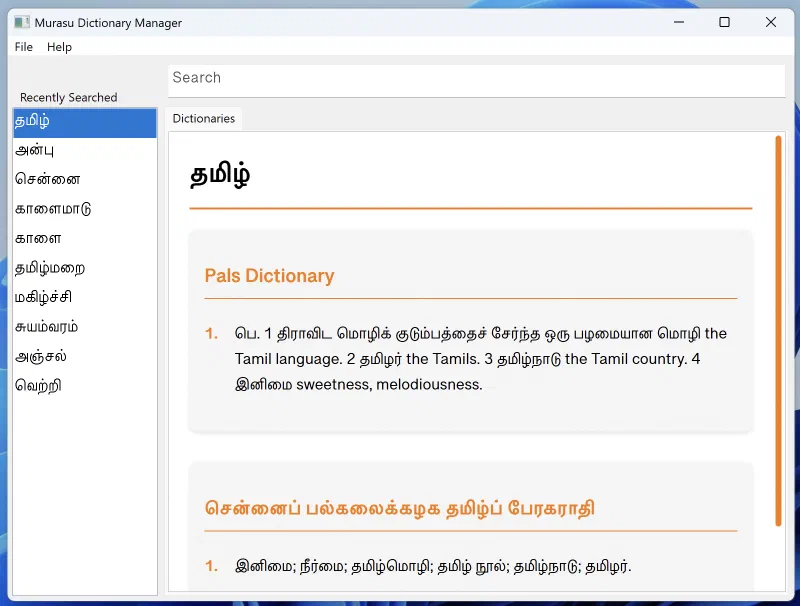
To use it, type a word into the search box and view the results; the app keeps a Recently Searched list so you can return to earlier lookups quickly. Wikipedia pages are rendered inside the app.
The Dictionary Manager
The Dictionary Manager is also where the candidate-window lookup from section 4.3.4 takes you: pressing Ctrl + Shift + Enter (Windows) or Option + Enter / Option + number (macOS) on a candidate opens that word here automatically.
Other features:
Import Custom Dictionary / Delete Custom Dictionary — add your own dictionary data, or remove an imported one.
Clear Cached Data — clear locally cached lookup results.
7. Character Palette
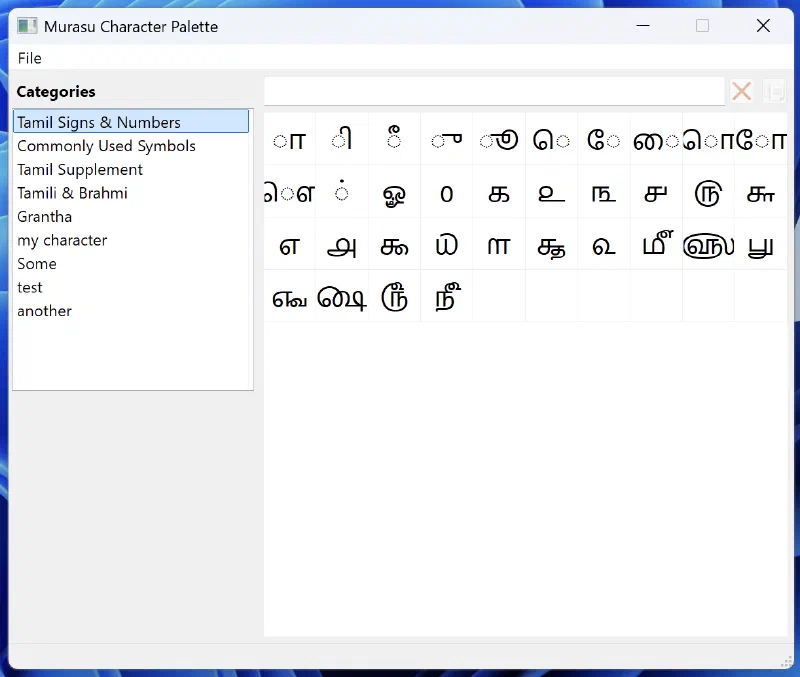
The Character Palette helps you find and insert characters that aren’t on your keyboard — Tamil signs, Grantha letters, symbols, and other Unicode characters — each shown with its official Unicode name.
The Character Palette
Characters are laid out in a grid, organised by category. Select a character to see its details, then Copy to Clipboard to paste it into any document. You can also create your own groups with Add Custom Characters: give the category a Title and the set of Characters you want in it, and edit or delete your custom categories later. The underlying Unicode name data is kept current from unicode.org.
8. Solvan Text Reader
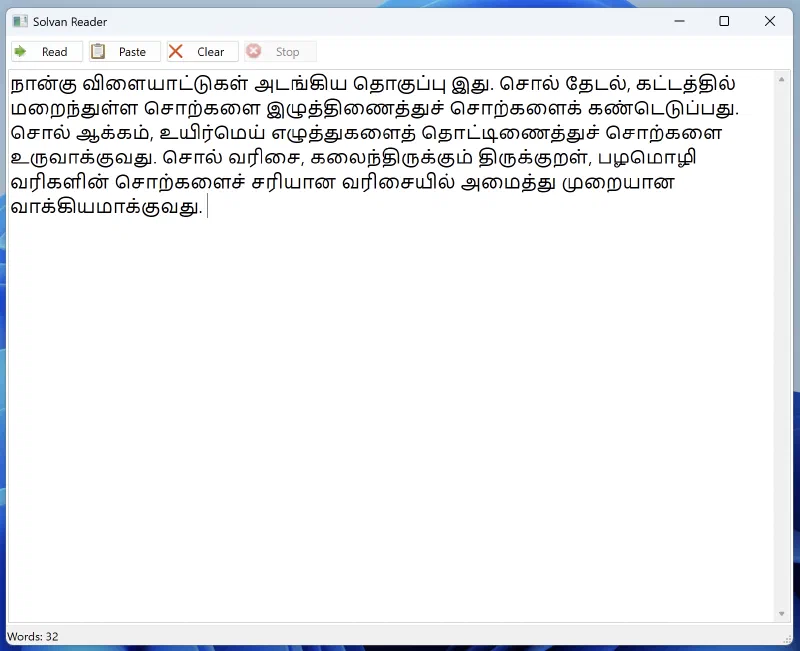
Solvan is a Tamil text-to-speech reader: paste in text and have it read aloud. It’s useful for proofreading by ear, for accessibility, and for checking pronunciation while learning.
The Solvan Text Reader
The controls are straightforward:
Paste — bring in text from the clipboard.
Read — start reading; Solvan works through the text line by line, highlighting the current line as it goes.
Pause / Resume / Stop — control playback.
Clear — empty the text area.
A status bar shows the current word count. Before speaking, Solvan runs the text through a preformatter that prepares Tamil for natural-sounding speech — for example, reading numbers aloud as Tamil words and tidying up line formatting.
Solvan speaks using the text-to-speech voices installed on your operating system, so the available voices and quality depend on your system. For the best results, install a Tamil voice in your operating system’s speech settings.
9. File Converter
The File Converter opens Tamil documents written before Unicode and rewrites them in Unicode, so that text typed twenty years ago can be searched, spell-checked, and set in a modern font like any other. It also does a second, smaller job that has nothing to do with old documents: putting Tamil that is already Unicode into the Anjal font you want.
Converting needs an activated Personal or Premium licence. Opening a document and seeing what is inside it does not — you can always look, whatever your licence.
9.1 Opening a document
Start the File Converter from the Murasu Anjal system-tray icon (Windows) or the menu bar icon (macOS), then either drag a document anywhere onto the window or use Browse….
It reads Word documents (.docx) and plain text files (.txt).
Older .doc files — Word 97-2003 — are a different and much older file format, and the converter cannot read them. If you have one, open it in Word and use Save As to save it as .docx, then convert that. Anyone holding Tamil documents from the 1990s is likely to meet this, so the converter says so plainly rather than simply refusing the file.
9.2 What the table tells you
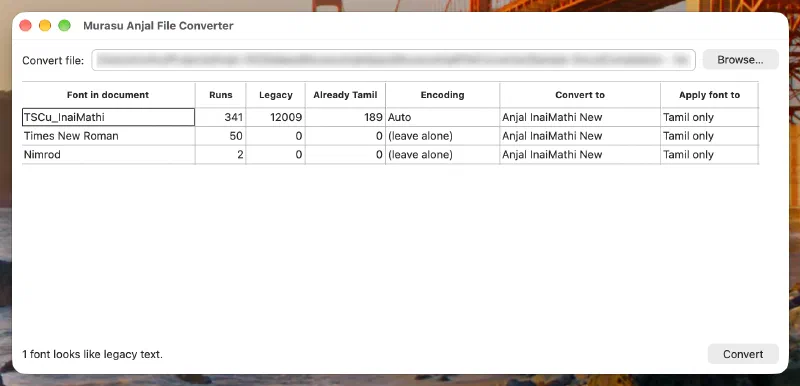
When a document opens, the converter lists every font used in it, one row per font, with the most-used font first. This table is worth reading even if you convert nothing: it is the quickest way to find out what an inherited document actually contains.
The File Converter on macOS, showing a legacy document’s fonts
Font in document — the font each row describes. A row may read (no font set) if the document never specified one.
Runs — how many separate pieces of text are in that font.
Legacy — how many characters look like pre-Unicode Tamil. This is the “there is something here to convert” number.
Already Tamil — how many characters are already Unicode Tamil, and must be left alone.
Encoding — which older Tamil encoding the converter thinks the row is in.
Convert to — which Anjal font to use for the Tamil it writes.
Apply font to — whether that font is applied to the Tamil only, or to everything in the row.
The two counts are kept apart on purpose. A document that has already been converted once is full of Tamil but has nothing left to convert, and a single number could not tell you the difference.
Tip: Nothing is decided for you that you cannot change. Where the converter is confident, a row arrives ready to convert; where it is not, the row arrives set to (leave alone) and waits for you. It will not guess its way into changing your text.
9.3 Converting older Tamil to Unicode
Tamil was written on computers for years before Unicode existed, and several different systems were in use at once. The converter recognises TSCII, TSCII 1.6, TAB, TAM, Anjal, Murasu 6, Tharagai, Thunaivan, Kanian and Mylai.
For most documents there is nothing to decide: rows that need converting arrive set to Auto, and pressing Convert is all that is required. The Encoding column is yours to change when you need it:
If you know the document is in a particular encoding — often because you know which program produced it — choose that encoding by name.
If a row should be left exactly as it is, choose (leave alone).
Choosing the wrong encoding produces wrong text rather than an error, because the converter does as it is told. This is safe to experiment with for one reason, described below: your original file is never altered, so a wrong choice costs you a second attempt and nothing else.
Mylai is offered in this list but is never chosen automatically. Mylai text is made up of ordinary English letters, so a Mylai document and an English one cannot be told apart by looking at them — which means it is safe for you to name it, but never safe for the converter to guess it.
9.4 Putting Tamil into an Anjal font
Not every problem is an encoding problem. Two common ones are only about the font:
Tamil pasted from a web page or an email arrives as perfectly good Unicode, but in whatever font the source used — often Latha or Nirmala UI on Windows. Nothing needs decoding; the text simply needs to be in your font.
Documents made with Anjal 10 fonts are already Unicode too. Those fonts still work, but they have been redesigned and reissued for version 12 (see section 10.6), and a document set in them can be moved onto the current versions.
For either case, set the row’s Encoding to Change font only. The text is left exactly as it is — not one character is rewritten — and only the font changes.
For an Anjal 10 document the Convert to column is already filled in with the matching modern font, so Anjal Paari becomes Anjal Paari New and Anjal Kavithai becomes Anjal Kavithai New. Your choice of typeface is kept rather than replaced with a single default. You can of course choose a different font instead.
Apply font to decides how much of the row is affected:
Setting
What it changes
Tamil only(default)
Only the Tamil. English in the same font keeps the font it has
All text
Everything in that row, English included
The default leaves English alone because the author of the document chose that typeface deliberately. But every Anjal font in the Personal and Premium collections includes matching Latin letters, so if you would like the English to match the Tamil, All text will do it. This setting applies to ordinary conversions as well, not only to font changes.
9.5 Your original file is never changed
Every conversion writes a new file beside the original, named after it with (Anjal) added — so Report.docx produces Report (Anjal).docx. If that name is already taken, the converter numbers the new one rather than overwriting anything.
This is the reason you can try a setting, look at the result, and simply try again if it is not what you wanted. The document you started with is still there, untouched.
When the conversion finishes, the converter offers to open the new file so you can check it straight away.
Tip: Look at the converted document before you delete anything. Tamil that converts to the wrong letters still opens perfectly well, so the only reliable check is reading it.
9.6 What it does not handle yet
Word 97-2003 (.doc), as described in section 9.1 — save as .docx first.
PowerPoint and Excel files are not supported yet.
Rich Text (.rtf) and Murasu .mrt files can’t be opened directly, but there is a way round it. Open the .rtf file in Word, or any other application that can read it, and save it as .docx, then convert that. An .mrt file is a Rich Text file under another name: rename it to end in .rtf, then take it through the same route. (Windows hides file extensions by default — in File Explorer, turn on View → Show → File name extensions to see and change it.)
A few older encodings — including Sree Lippi, Bamini and IndoWord — are not yet converted. A document in one of these may be recognised but left unchanged, or not recognised at all.
Part IV — Fonts
10. Murasu Anjal Fonts
Version 12 is not only a new input method — it is also a major refresh of the Murasu Anjal font collection. Every existing font has been redesigned, several brand-new typefaces have been added, and the main body-text fonts now come in a full range of weights. All of them are standard Unicode Tamil fonts in OpenType/TrueType format, so once installed they work in any application — word processors, page-layout and design tools, web browsers, and presentations. In your application’s font menu they all begin with “Anjal,” so they group together and are easy to find.
10.1 Which fonts come with which version
The fonts are organised into three levels that match your license:
Free — a small set of everyday and teaching fonts, including the Anjal Dotted family (for handwriting practice) and the Anjal InaiMathi New and Anjal New InaiMathi Sch Book reading fonts.
Personal (paid) — the full collection of redesigned classic Murasu Anjal fonts (around twenty families), many with multiple weights.
Premium (paid) — everything in Personal, plus a set of new display typefaces created for Version 12.
10.2 Updated (classic) fonts — the “New” names
All of the long-standing Murasu Anjal fonts have been redrawn for Version 12. So that the updated fonts can sit alongside the originals without conflict, each redesigned font carries “New” in its name. For example, the classic Anjal Malar is now Anjal Malar New, and likewise Anjal Kavithai New, Anjal Sudar New, Anjal Thamarai New, and so on. When choosing a font for new work, pick the “New” version to get the latest design.
10.3 New Premium typefaces
The Premium version adds nine new typefaces, designed for headings, titles, and decorative use:
In the paid versions (Personal and Premium), the main body-text fonts now ship in several weights, so you can build a proper typographic hierarchy — light text for captions, regular for body copy, and heavier weights for headings — all within a single font family. The richest families include:
Font family
Available weights
Anjal Chittu New (coming soon)
Extra Light, Light, Regular, Medium, Semi Bold, Bold, Extra Bold, Black
Anjal InaiMathi New
Light, Regular, Medium, Demi Bold, Bold, Black
Anjal Mathavi New
Light, Regular, Medium, Semi Bold, Bold, Extra Bold
Anjal Paari New
Light, Regular, Medium, Semi Bold, Bold, Extra Bold
Anjal Varisai New
Light, Regular, Medium, Semi Bold, Bold, Extra Bold
Anjal InaiKathir New
Regular, Medium, Semi Bold, Bold, Extra Bold
Anjal Kavithai New
Light, Regular, Medium, Demi Bold, Bold
Anjal Malar New
Light, Regular, Medium, Semi Bold, Bold
Anjal Sudar New
Light, Regular, Medium, Semi Bold, Bold
Anjal Kuyil (Premium)
Regular, Medium, Semi Bold, Bold, Extra Bold
The remaining fonts are available in a single style each and are well suited to titles and short, decorative text.
10.5 Fonts for teaching and early reading
A few fonts are designed for specific classroom uses and are worth knowing about:
Anjal Dotted and Anjal Dotted (Densed)(Free) — these render each Tamil letter as a dotted outline, ideal for creating handwriting-practice worksheets that students can trace. Both come in a range of weights (Light through Bold), so you can control how heavy the dotted guides appear.
Anjal New InaiMathi Sch Book(Free and Paid) — a clear “school book” face designed for early readers and learning materials. This is the official Tamil font used by the Ministry of Education (MOE) in Singapore.
10.6 Legacy Anjal 10 fonts
For compatibility with older documents, the original Anjal 10 fonts are also included, but they are disabled by default so they don’t clutter your font menu. If you need them — for instance, to open or reproduce an older document built with them — you can enable them in Murasu Anjal Manager.
10.7 Managing and using the fonts
Installing and enabling. The fonts are installed with Murasu Anjal and are ready to use straight away. The only set you can turn on or off is the legacy Anjal 10 collection, which you enable or disable in Murasu Anjal Manager (it is off by default — see section 10.6).
Using weights. In most applications you choose a weight from the font menu or the bold/weight control; in some apps the weights appear as separate entries in the family list (for example, “Anjal Malar New Light”).
Across applications. Because these are standard Unicode fonts, text you type with Murasu Anjal displays correctly in any app that supports Unicode Tamil, and your documents remain portable.
Part V — References
The two Parts above describe what Murasu Anjal 12 does. This one is background:
where the two modern Tamil keyboard layouts came from, and how each of them
behaves in detail. You do not need any of it to use the application, but if you
type Tamil every day it is worth knowing why the layout under your fingers is
shaped the way it is.
The material here is adapted from articles first published on sellinam.com;
each chapter names its sources at the end. Where the behaviour described in
those articles has since changed, this Part follows Murasu Anjal 12 as it
ships, and says so.
11. The Anjal keyboard
11.1 Where the Anjal layout came from
The Anjal key layout was created by Muthu Nedumaran in 1993, and was the
default keyboard of the free Murasu Anjal software. It became widely used for a
simple reason: anyone who could already type English could type Tamil with it
almost immediately.
It was also the first input method to transliterate keystrokes from English into
Tamil letters as you type. That is easy to take for granted now. Before
Anjal, writing a Tamil document meant typing it in English letters according to
a scheme, saving that to a file, and then running the file through a separate
program to convert it into Tamil. You could not see your Tamil until the
conversion had run.
Direct input methods of this kind followed elsewhere only later. Several other
applications, Google’s among them, adopted much the same idea. Apple ships it on
the Mac, iPhone and iPad, and HTC shipped it on its Android devices — both of
them under its own name, Anjal. Other implementations call it other things,
but for the people who have used it longest the name has stuck.
The layout is built on a phonetic mapping of Tamil letters onto English ones,
with a handful of rules for the sounds that English spelling does not handle
cleanly. The mapping below is the one introduced in 1993, and it still works
exactly as it did then.
In March 2015 three additions were made — vowel rotation, the f escape,
and uppercase W for ன் — first in Sellinam 4.0 for Android and in the Murasu
Anjal Muthal Nilai edition for Windows. They are described in 10.4 and 10.5. If
you have typed on the original mapping for years, nothing you know has changed:
the additions only give you shorter ways out of situations that used to need the
delete key.
11.2 The 1993 key mapping
Vowels (உயிர் எழுத்துகள்)
அa
ஆaa/A
இi
ஈii/I
உu
ஊuu/U
எe
ஏee/E
ஐai
ஒo
ஓoo/O
ஔau
ஃq
Consonants (மெய் எழுத்துகள்)
க்k
ச்c/s
ட்d
த்t
ப்p
ற்R
ய்y
ர்r
ல்l
வ்v
ழ்z
ள்L
ங்ng
ஞ்nj
ண்N
ந்w/n-
ம்m
ன்n/W
Grantha letters (கிரந்தம்)
ஹ்h
ஸ்S
ஜ்j
ஷ்sh
க்ஷ்x
ஶ்ரீsri
Case matters throughout: L is ள் and l is ல், N is ண் and n is ன். The
mapping of uppercase W to ன் was added in March 2015; n has always produced
it as well.
Murasu Anjal accepts a few spellings the 1993 table does not list, because they
are what people reach for naturally — th for த், g for க், ch for ச்,
dr for ற். You never need them, and the table above remains the mapping worth
learning.
11.3 The typing rules
1. Compound letters (உயிர்மெய்). Type the consonant, then its vowel.
Keystrokes
Output
mozi
மொழி
anbu
அன்பு
2. Long vowels (நெடில்). Type the vowel twice, or type it in upper case.
Keystrokes
Output
yaakaavaaraayinum
யாகாவாராயினும்
yAkAvArAyinum
யாகாவாராயினும்
3. Words with ன்ற். Type ndr.
Keystrokes
Output
mandram
மன்றம்
kandru
கன்று
toondri
தோன்றி
4. Words with ற்ற். Type tr.
Keystrokes
Output
patru
பற்று
pootri
போற்றி
petraal
பெற்றால்
5. Words with ண்ட். Type nd.
Keystrokes
Output
mandapam
மண்டபம்
kandu
கண்டு
veendaam
வேண்டாம்
6. Words with ந்த். Type nt.
Keystrokes
Output
sontam
சொந்தம்
anti
அந்தி
vantu
வந்து
7. Words with ஞ்ச். Type njj.
Keystrokes
Output
manjjaL
மஞ்சள்
tanjjam
தஞ்சம்
konjji
கொஞ்சி
8. Words beginning with ந. A word almost never begins with ன, so when n
is the first letter after a space, tab or Return, Murasu Anjal produces ந்
rather than ன்.
Keystrokes
Output
anta naaL
அந்த நாள்
11.4 Vowel rotation
Added March 2015.
Type a vowel after a vowel and the second one replaces the first. The same
applies to vowel signs. It means you can correct a vowel the moment you notice
it, without deleting anything.
Say you want கி, which is ki, and your finger lands on ko instead — you have
கொ. Before this change the only way back was to delete the whole syllable and
retype it. Now you simply type i:
Step
Keystroke
On screen
1
k
க்
2
o
கொ
3
i
கி
You can keep going: each vowel you type replaces the one before it, for as long
as you like. This applies to the Anjal layout only.
11.5 Escaping the automatic changes
Added March 2015.
The rules in 10.3 are automatic: nd becomes ண்ட், tr becomes ற்ற், and so
on. That is what makes the layout quick, and occasionally it is not what you
want — most often when you are writing a word that is not standard written
Tamil.
Press f between the two keys to stop the automatic change. f is
otherwise unused in the layout, so it never types anything itself.
Keystrokes
Output
aa
ஆ
afa
அஅ
eendaa
ஏண்டா
eenfdaa
ஏன்டா
This is what to reach for when you are writing:
Spoken forms — ஏன்டா, ஆமான்டா and the like, where the automatic ண்ட் is
wrong.
Foreign words written as they sound — பெட்ரோல், கன்ட்ரோல், which need
ன்த், ட்ர் and other sequences the rules would otherwise rewrite.
Two vowels side by side, as in the afa example above.
Words like these do not appear in the suggestion list, since they are not
standard spellings, so this is usually the quickest way to get them down. If you
type one often, add it to your own wordlist — see section 5.
Pressing f twice puts an explicit pulli on a bare consonant. This is
useful when you want a consonant to stand on its own and the next thing you type
would otherwise combine with it. A pulli only makes sense on a consonant that
does not already have one, so anywhere else the second f does nothing.
Sources.Anjal Key Layout, sellinam.com, 23 May 2015
(https://sellinam.com/archives/406), and its Tamil edition
அஞ்சல் விசையமைப்பும் அதில் உள்ள புதிய வசதிகளும், 29 March 2019
(https://sellinam.com/archives/2213). The behaviour described here has been
checked against Murasu Anjal 12.
12. The Tamil99 keyboard
12.1 Where the Tamil99 layout came from
Tamil99 was announced at the Tamil Internet Conference held in Chennai in
1999, and it is a standard rather than one company’s design: it specifies both
the arrangement of the letters and the rules an implementation has to follow.
Murasu Anjal’s Tamil99 keeps to those rules in full.
Which of the two layouts is better is an argument that has run for years, and it
is not a useful one. They were designed for different people:
Anjal is for someone who types mostly in English or Malay and turns to
Tamil now and then. Its aim is simplicity — you already know the keys.
Tamil99 is for someone who types in Tamil all day. Its aim is speed —
the fewest keystrokes, with the common letters under the strongest fingers.
Neither aim implies the other is missing. Anjal is not slow, and Tamil99 is not
difficult; they simply optimise for different things. If you work in Tamil
constantly, the time spent learning Tamil99 is repaid.
A note for anyone comparing this with a phone: on handheld devices, Sellinam
made two changes to the layout, moving the pulli key to the right of the space
bar and the ஐ key down from the first row, so that no row needs more than 11
keys — twelve keys in a row on a phone are too narrow to hit reliably. Those
changes went out on HTC’s Android devices in 2011, on Google Play in
2012, and on the iPhone and iPad in 2013. On a computer keyboard there
is no such constraint, and Murasu Anjal 12 uses the standard arrangement shown
below.
12.2 The layout
qஆஸ
wஈஷ
eஊஜ
rஐஹ
tஏக்ஷ
yளஶ்ரீ
uற
iன
oட[
pண]
[ச
]ஞ
aஅ
sஇ
dஉ
f்ஃ
gஎ
hக
jப
kம"
lத:
;ந;
'ய'
zஔ
xஓ
cஒ
vவ
bங
nல
mர/
,,
..
/ழ
The Tamil99 layout as Murasu Anjal 12 implements it. The large glyph is the unshifted key; the small one at the top right is what Shift produces.
Two things to notice. The vowels have their own keys on the left, and the
consonants carry their inherent அ — the h key types க, not க். And the
pulli has a key of its own, on f, which is what turns க into க். The
Grantha letters and the aytham sit on the shifted keys of the top row.
12.3 How it works
1. Vowels and consonants-with-அ have separate keys. There is no key that
types a bare consonant directly.
2. To type a bare consonant, type the consonant, then the pulli.
Keys
Output
அ த ன ்
அதன்
க ல ்
கல்
3. To type a compound letter, type the consonant, then the vowel.
Keys
Output
ம உ ழ உ ம ஐ ய ஆ க இ
முழுமையாகி
த ஏ ட இ ய ப ஓ த உ ம ்
தேடியபோதும்
4. Certain pairs take their pulli automatically, so you do not have to type
it. This is the subject of section 13.
12.4 Grantha letters, numbers and symbols
The Grantha letters are on the shifted keys of the top row, in the same
positions the standard specifies: ஸ ஷ ஜ ஹ க்ஷ ஶ்ரீ on Q W E R T Y.
Shift and f gives the aytham, ஃ.
The digits are on the number row, unshifted, as on any keyboard.
Tamil numerals (௧ ௨ ௩ …) and the abbreviation signs for month, year and the
like are not on the Tamil99 layer in Murasu Anjal 12. When you need one, the
Character Palette has them all, with their official Unicode names — see
section 7. (On phones, Sellinam does place them on shifted keys; that is a
difference between the two, not something missing here.)
12.5 A caution about Tamil numerals
Tamil numerals and abbreviation signs have their own Unicode codepoints, and
they are letters only in appearance. Several of them look enough like ordinary
letters to be pressed into service as one:
௹, the rupee sign, used as if it were ரூ
௫ (five), used as if it were ரு
௧ (one) for க, ௭ (seven) for எ, ௮ (eight) for அ
Text written that way looks right and behaves wrongly. Suggestions will not
appear for the word, because as far as the software is concerned it is not that
word. Searching a document or the web will not find it. Anything that reads the
text — a screen reader, a spell checker, a search index — sees a number where
you meant a letter.
Type the letter you mean, and leave the numerals for numbers.
Sources.தமிழ்-99 பயன்பாட்டு வழிமுறைகள், sellinam.com, 27 June 2015
(https://sellinam.com/archives/485). The layout chart above is drawn from
the key tables in Murasu Anjal 12 itself rather than from a published diagram.
13. The pulli in Tamil99
Tamil99 adds the pulli for you in the two cases where it can be certain one is
needed. It saves a keystroke in a great many words, and — as with any automatic
behaviour — there are a few words where you have to tell it not to.
13.1 When the pulli is added for you
Rule 1 — the same consonant twice. Type a consonant-with-அ twice and the
first one takes a pulli.
First key
Second key
Result
க
க
க்க
ய
ய
ய்ய
ர
ர
ர்ர
ங
ங
ங்ங
ஜ
ஜ
ஜ்ஜ
Rule 2 — the six pairs. These combinations occur constantly in Tamil, and
the first letter of each always carries a pulli.
First key
Second key
Result
ண
ட
ண்ட
ஞ
ச
ஞ்ச
ங
க
ங்க
ந
த
ந்த
ம
ப
ம்ப
ன
ற
ன்ற
Both rules are part of the Tamil99 standard, not additions of ours.
13.2 Avoiding a pulli you did not want
Some words put those same letters side by side without a pulli between them —
often, though not only, words borrowed from another language. Left alone,
பூதத்தின் comes out as பூத்ததின் and மனனம் as மன்னம்.
To stop it, type அ between the two letters. Nothing appears on screen when
you do: a consonant key already carries its inherent அ, so typing அ after த
gives த again. All it does is end the pair, and rule 2 needs the two letters to
be consecutive.
Word
Keys
பூதத்தின்
ப ஊ த அ த த இ ன ்
சமமாக
ச ம அ ம ஆ க
சுந்தரராஜன்
ச உ ந த ர அ ர ஆ ஜ ன ்
மனனம்
ம ன அ ன ம ்
கெமமான்
க எ ம அ ம ஆ ன ்
The last is Kemaman, the town in Malaysia — place names and personal names are
where this comes up most.
13.3 Words that begin with a doubled letter
Words like சச்சின், சச்சரவு, தத்துவம், பப்பி and பப்புவா begin with
the same letter three times over. Typed straight through — ச ச ச இ ன ் — the
first two keys trigger rule 1 and you get ச்சசின் rather than சச்சின்.
The fix is the same அ:
Word
Keys
சச்சின்
ச அ ச ச இ ன ்
சச்சரவு
ச அ ச ச ர வ உ
தத்துவம்
த அ த த உ வ ம ்
பப்பி
ப அ ப ப இ
பப்புவா
ப அ ப ப உ வ ஆ
13.4 Turning the automatic pulli off
If you would rather type every pulli yourself, you can. In Input Method
Settings there is a Disable Tamil99 auto-pulli option; with it on, no
pulli is ever added for you and the அ trick above is never needed. See section
3.2.
Most people leave it as it is. The two rules are right far more often than they
are wrong, and 12.2 handles the rest.
Sources.தமிழ்-99 விசைமுகத்தில் புள்ளி, sellinam.com, 10 May 2015
(https://sellinam.com/archives/341). The rules and the escape have been
checked against Murasu Anjal 12; the setting described in 12.4 is not
mentioned in the original article.